
Every graphic, at a glance
GraphicShelf
A fast visual catalog of your graphic files.
One-time purchase. No subscription.
Version 1.0.19 · 7 days with all features, no key needed. Open the disk image and drag GraphicShelf to Applications.
Coming soon to the Mac App Store, too.
Find the file. See it first.
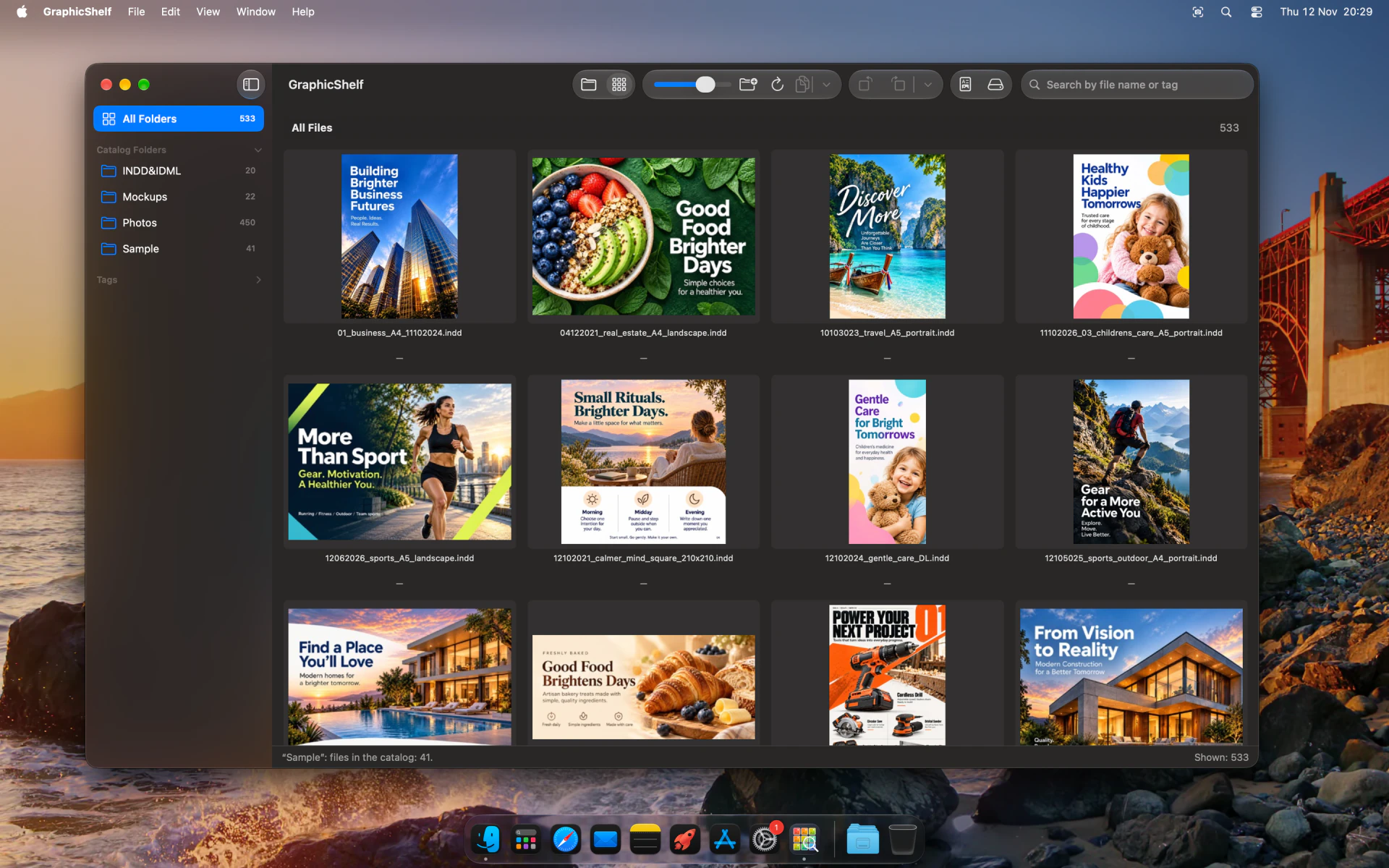
- Add any folder or external drive, by button or drag and drop. GraphicShelf looks through all its subfolders and makes previews of everything inside.
- Previews for InDesign (INDD, IDML) without InDesign, Illustrator, Photoshop (also files saved without “Maximize Compatibility”), PDF, EPS, CorelDRAW, TIFF, JPEG, PNG, camera RAW and more. No Adobe apps needed.
- Search by file name or Finder tag across the whole catalog. Type a few words and GraphicShelf finds files that contain all of them; capital letters and accents don’t matter.
- See Finder tags next to the thumbnails and assign them right in GraphicShelf. Tags are saved in the files themselves, so you see them in Finder and Spotlight too.
- Browse by Folders or see All files at once. Press Space for a large preview, also of CorelDRAW files, every page of InDesign documents and Photoshop files saved without “Maximize Compatibility”.
- EPS files show up in the thumbnails and in the Space preview, which recent versions of macOS no longer do in Finder or Preview. They are shown from the preview stored in the file; if you install the free Ghostscript yourself (for example with Homebrew), EPS previews become sharp vector renderings.
- Select files from different folders and copy them to any folder in one go, drag several at once into another app (for example Photoshop in the Dock), open them with the app of your choice or move them to the Trash. Moving several files to the Trash always asks you to confirm first.
- Create a multi-page PDF contact sheet of what you see: file names are real text you can search with Cmd + F, a click on a thumbnail opens the original, and folders appear in the PDF’s table of contents.
- Disconnected drives stay in the catalog, so you can still find and preview their files. Files that were moved or deleted are marked, not silently removed. The catalog and previews stay on your Mac.
- Available in English, Polish, German, French, Spanish, Portuguese, Japanese and Italian, following your Mac’s language.
Three steps. Then just look.
- 01
Open GraphicShelf.
- 02
Click Add Folder or drag a folder or drive into the window, and wait while the previews are made.
- 03
Search by name, press Space to preview, then copy the files you need or make a PDF contact sheet.
Need a little help?
Is there a free trial?
Yes. GraphicShelf works for 7 days with all features, no key needed. After the trial you can still browse, search and preview your catalog; adding folders, refreshing, PDF contact sheets and copying need a license. A license is a one-time purchase of $19.99 plus applicable taxes, handled by our reseller FastSpring, and covers up to two Macs. Moving to a new Mac? Click Deactivate this Mac in GraphicShelf on the old one, then enter the same key on the new Mac.
Do I need InDesign, Illustrator or Photoshop?
No. GraphicShelf shows previews without Adobe apps. InDesign files show the preview InDesign saves inside the document; if one looks blurry, turn on Preferences › File Handling › Always Save Preview Images with Documents in InDesign and save the file again.
Why do some EPS previews look blurry?
Without extra software GraphicShelf shows the preview stored inside the EPS file. Most EPS files from Illustrator and Photoshop have one, sometimes at a lower resolution. Install the free Ghostscript (for example: brew install ghostscript) and GraphicShelf uses it automatically for sharp vector previews. Ghostscript is not included with GraphicShelf; the app only uses it if you have installed it.
What happens when I disconnect a drive?
Its files stay in the catalog with their previews, and the folder is marked with an orange icon. Connect the drive again to open or copy the originals.
Does GraphicShelf change or move my files?
No. It only reads them to make previews. Copying puts copies in the folder you choose; the originals stay where they are.
Let’s work it out.
Questions, problems or ideas? Please include your macOS version and describe the file or folder.
support@robiapps.comAdobe, InDesign, Illustrator and Photoshop are either registered trademarks or trademarks of Adobe in the United States and/or other countries. CorelDRAW is a trademark of Corel Corporation. Apple, Mac and macOS are trademarks of Apple Inc. GraphicShelf is an independent app and is not affiliated with or endorsed by Adobe, Corel or Apple.